In short
For words per slide in a LinkedIn carousel, a working range is a headline of up to 8 words plus at most three short lines, about 40 words in all. That is the rule carouselgen's designer follows when the One idea per slide tip is on. It is a rule of thumb, not a measured optimum, and the phone sizes below are what make it hold.
How many words per slide does a LinkedIn carousel need?
As few as carry one point. LinkedIn's Document Ads guide says documents are read mostly on phones and tablets, so content should be short and snappy, and it warns against small fonts and several columns of text. It gives no word count, and we found no source we could cite that does. So the numbers here are a working range, and the first one to adjust is yours.
- Cover: one promise in at most 10 words. That is what the Hook on the cover tip tells the designer, and the cover is the largest text in the deck.
- Content slides: a headline of at most 8 words that states the takeaway, plus at most three short lines, about 40 words per slide. This is the One idea per slide tip.
- Closing slide: the takeaway in a line and one ask. See the last slide's call to action.
How big should the text be on a phone?
A slide is 1080 by 1350 pixels, and the designer is told that people read it on a phone at about a third of its real size. Here is what it is asked to do.
| Case | Body text | Headline | Margins |
|---|---|---|---|
| The designer's default | At least 30 px (labels 22 px) | 64 px or more | At least 72 px |
| Readable on a phone tip is on | At least 36 px | At least 64 px | At least 80 px, contrast at least 4.5 to 1 |
| Few words on a slide | 40 to 48 px | 100 px or more | As above |
| You ask for a dense slide, such as a full table | As small as 16 px | As the content needs | Everything stays inside the margins |
As arithmetic of our own: if a slide fills a phone screen about 390 CSS pixels wide (phones differ), it is shown at roughly 0.36 of its size, so 36 px body text lands near 13 px. That is why a 30 px line in a 1080 px slide already feels small.
How do I cut a slide down to one idea?
- Say the point of the slide as one sentence. That sentence is the headline.
- If the sentence needs "and", you have two slides.
- Keep one example or number as the supporting line. Cut the reasons the reader can supply.
- Move background and caveats to the post text, which has room.
- Read the slide aloud. If it takes longer than a breath or two, cut again.
An example, with invented text. Before, one slide: "New hires settle in best when the first week has a clear plan, a named buddy, a short list of people to meet, access to every tool on day one, and a check-in on Friday so that problems surface early." After, three slides: "Name a buddy on day one." / "Give access to every tool before they start." / "Check in on Friday."
What happens when the text is too long for the slide?
The slide is a fixed box with overflow hidden, per carouselgen's rendering code, so words that run past the edge are cut off in the export. The editor has no warning for this: I looked through the code and found none, so look at every slide yourself, and again after any retyped headline. To fix it, shorten the words or split the slide; the guide to text cut off at the edge of a slide and the one on editing text by hand cover the fix.
What if the content really needs more text?
Say so in the brief. The designer is told that your request comes first: if you ask for a full table, a long list or a lot of text on a slide, it puts exactly that on the slide, using smaller type down to 16 px, a compact grid and tight spacing, while keeping everything inside the margins and the contrast legible. That is the right call for a table people will screenshot, and the wrong one for an argument people should read to the end.
Anything that needs a paragraph can move into the post text above the carousel; see writing the caption. And if the points are many, more slides beat smaller type: how many slides a carousel should have.
How carouselgen helps
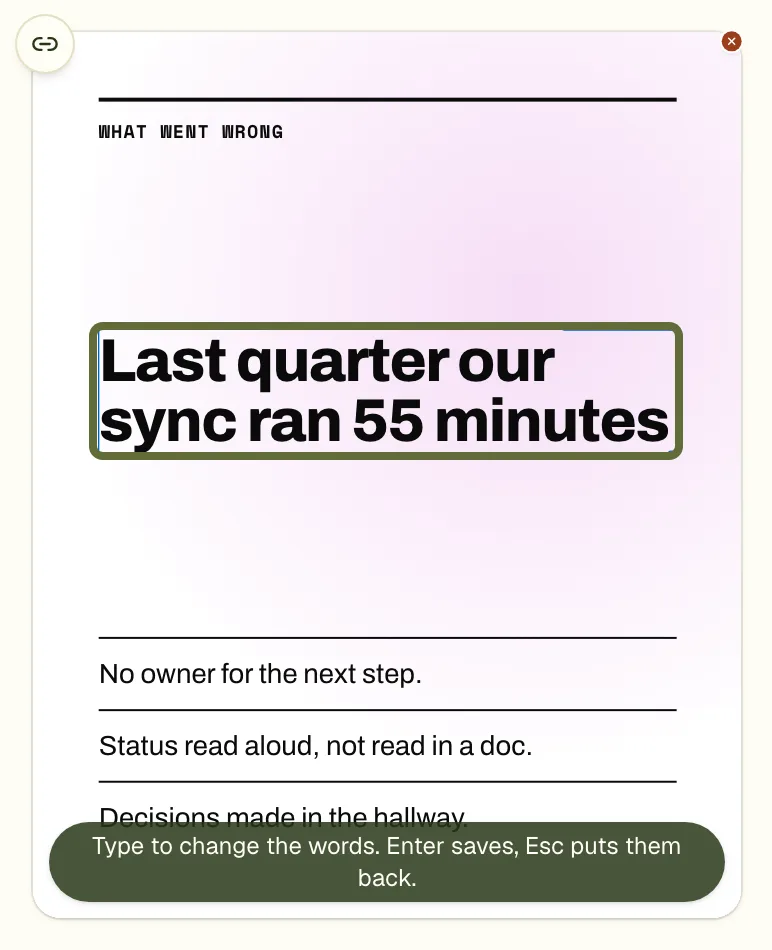
The One idea per slide and Readable on a phone tips are ticked by default, and the tips checklist lists what each tells the designer. When a slide has few words, the designer is told to make the design bigger instead of emptier: headlines of 100 px or more, a large number, a shape or a diagram, and never to fill space with invented words. A hand edit costs no edit round.
A worked example: a brief that sets the text budget
This is an example brief. It states the budget so the designer does not have to guess.
"A carousel for new managers: five habits of a good first month. Eight slides. Cover with one promise in at most 10 words. One habit per slide, each with a headline of at most 8 words and two short lines under it. Large type. Put the reasons and the background in my post text, not on the slides. The last slide asks one question about their first month."
Questions
How many words should be on a LinkedIn carousel slide?
There is no measured limit. carouselgen's designer uses a headline of at most 8 words and about 40 words in all per content slide, and at most 10 words on the cover.
What font size is readable on a phone?
With the Readable on a phone tip on, the designer uses at least 36 px body text and 64 px headlines on a 1080 px wide slide. LinkedIn's guide only says to avoid small fonts.
Does carouselgen warn me when text is cut off?
No. The editor has no overflow warning, so check each slide yourself. The slide is a fixed box that hides overflow, so cut-off text is cut off in the PDF too.
What if I need more text on one slide?
Ask for it in the brief and the designer will put it there, with type as small as 16 px. For a point that needs a paragraph, the post text above the carousel has more room.
Make this carousel now
Describe it once. The designer lays out every slide, and you fix what you dislike by commenting.
Try it nowcarouselgen is for members. One plan includes everything you see here.