In short
Release notes list everything. A LinkedIn carousel shows the three or four changes a customer would notice, each with a picture. A screenshot explains a feature faster than a sentence.
Steps
Attach the notes and the screenshots
The notes as a text, Markdown or Word file, and the screenshots as images, 10 files in all. A large screenshot is shrunk in your browser before it is sent.
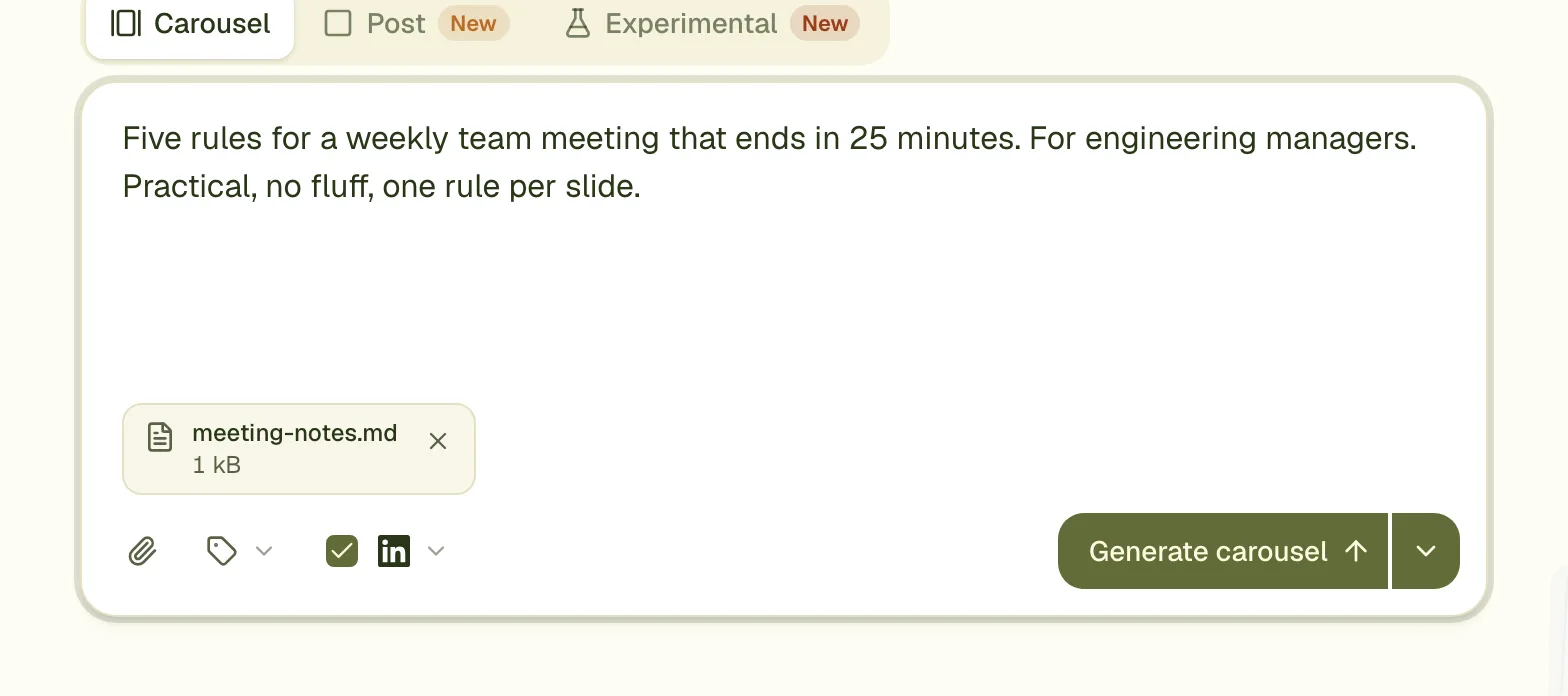
Say which changes to show
Name them, in order. Bug fixes and internal changes rarely belong in a carousel.
Match screenshots to slides
Name each image after its feature ("export-menu.png"), or say in the brief which image goes on which slide. The designer sees each file's name.
Generate and check
Make sure each screenshot sits on the slide about its feature, then comment to fix the details.
What makes it work
- Each slide says what the user can now do, not what the team built.
- One change per slide.
- Your product's brand, saved once and picked every time, so each month's update looks the same.
- A last slide that says where to try it; the link goes in the post text.
Questions
Can a screenshot be cropped to the part that matters?
The designer sizes and crops images to fit the layout. If one specific part matters, crop the screenshot before attaching it, or move and resize it by hand afterwards.
Can I make a single image for one feature instead?
Yes. Choose Post instead of Carousel above the prompt box to get one image.
Does this work for a launch?
Yes. Build the brief around the one problem the product solves, and attach a few screenshots.
Make this carousel now
Describe it once. The designer lays out every slide, and you fix what you dislike by commenting.
Try for free nowNo sign-up needed to try. The free plan exports with a small carouselgen.com mark.