
In short
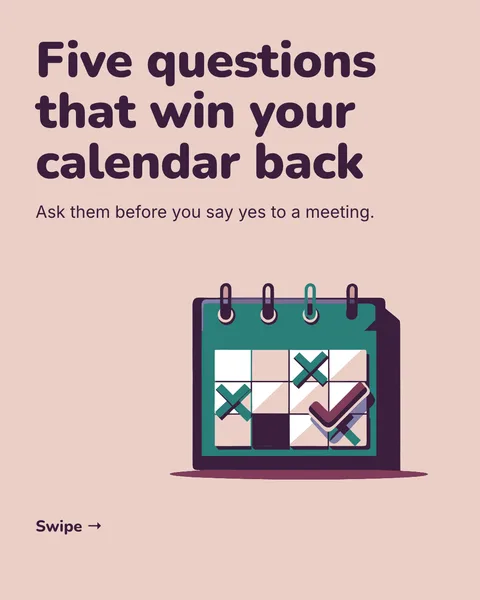
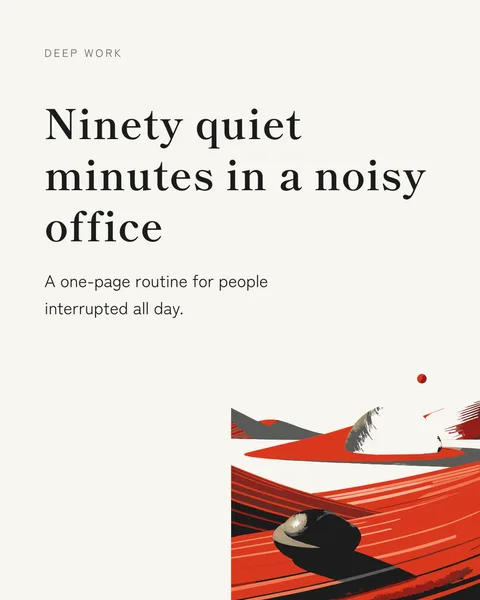
A carousel with a real photo of you, your product or your team looks more like yours than one made of shapes and type. Attach the photo with the brief, say where it goes, and the designer builds the slide around it.
Attach a photo
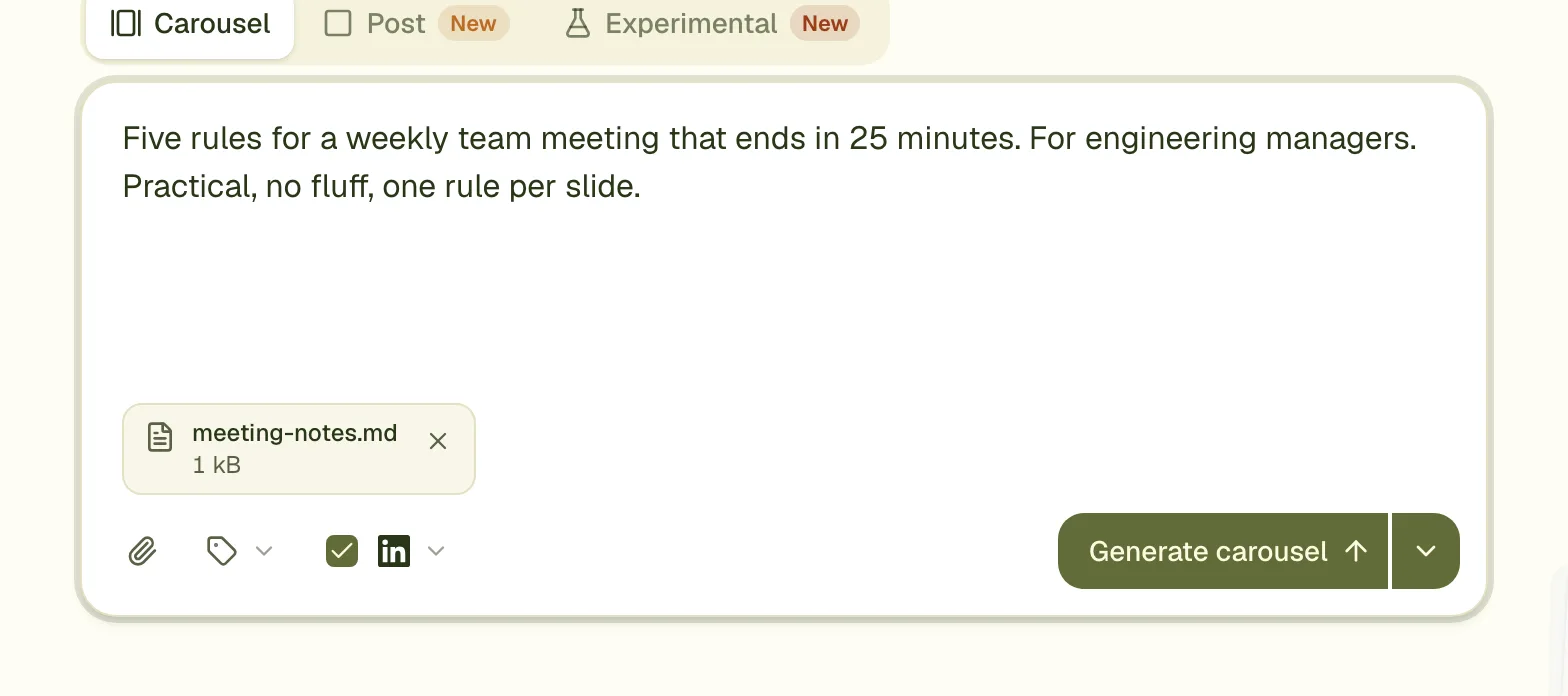
- Use the attach button, drop the image on the prompt box, or paste it. PNG, JPEG, WebP and GIF are accepted.
- Say in the brief which slide it belongs on: "my portrait on the cover" or "the product photo on slide 3".
- Generate. If you name no slide, the designer decides, or treats the image only as source material.
Limits
- An image over 1 MB or 1,600 pixels on its longest side is shrunk in your browser before it is sent.
- An animated GIF over the limit is refused.
- Up to 10 files per carousel, 20 MB in all.
Move or resize it afterwards
Right-click the photo to move it, resize it or remove it. A picture keeps its proportions when you resize it. These hand edits cost no edit round. A comment such as "put the photo on slide 2 instead" also works.
Make the photo read well
- Use a sharp photo with a plain background. The designer cannot repair a blurry one.
- A portrait that is cropped tightly leaves room for a headline beside it.
- To put your face and name on every slide as a byline, see the guide on adding the author.
Questions
Will it put the photo in the PDF?
Yes. A photo placed on a slide is part of the slide, so it appears in the exported PDF and images.
Can I add a photo after the carousel is made?
Attach the photo before you press Generate, so the designer can build the slide around it. After that, a comment or a hand edit can move a photo that is already attached.
Does it use my photo to draw something new?
No. The photo is placed as it is, scaled and cropped to fit. It is not redrawn.
Try it on your own carousel
Make a carousel from a short brief, then use this feature on it. It takes about a minute to get the first draft.
Try for free nowNo sign-up needed to try. The free plan exports with a small carouselgen.com mark.