
In short
A logo on each slide tells readers whose carousel it is, even when a slide is shared on its own. carouselgen keeps your logo in a brand, a saved identity with logo, colours and fonts, and adds it to every carousel you make with that brand.
Set it up once
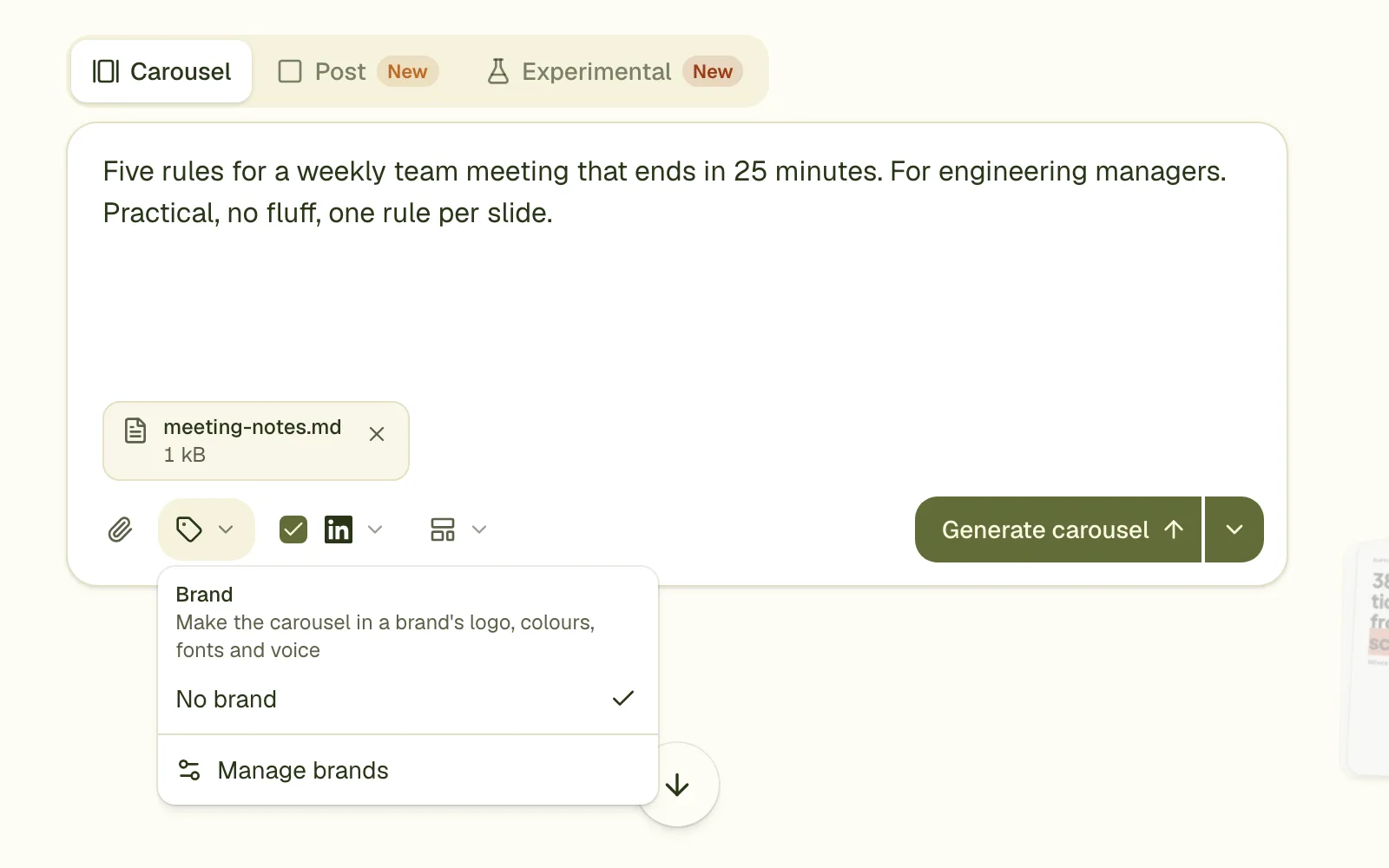
Open the Brand menu in the prompt box
Choose Manage brands. Signed out, the Brand button asks you to sign in first.
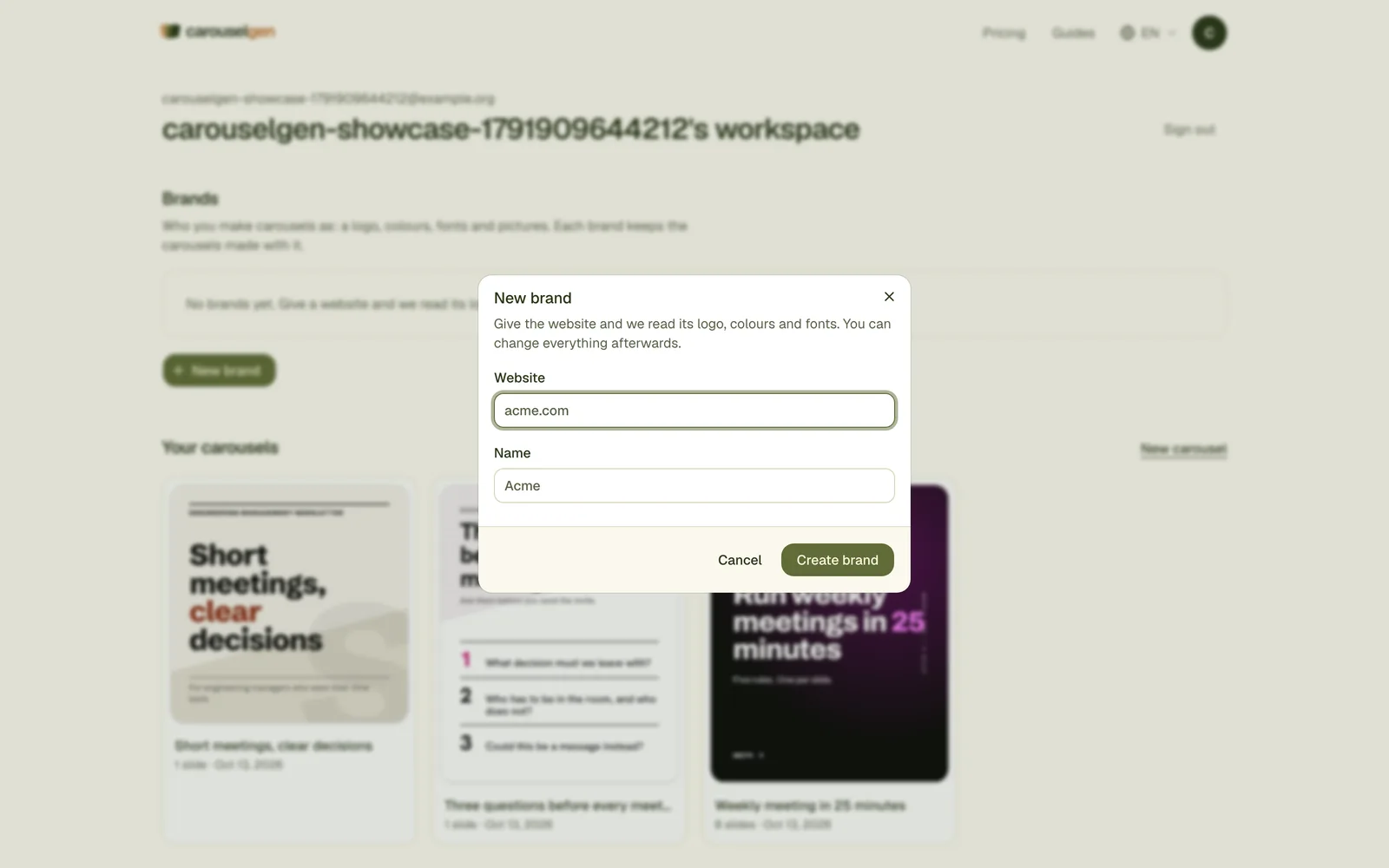
Create a brand with your website, or by name
Give the website and carouselgen reads its logo, colours and fonts. You can change everything afterwards, and upload a logo yourself if the website could not be read.
Make a carousel with the brand
Pick the brand in the prompt box. The logo goes to the designer with your brief and is placed on the slides.
Which logo file to use
- PNG, JPEG or WebP, up to 1 MB. A larger file is scaled down to fit.
- An SVG logo is accepted and drawn to a PNG on the way in.
- A PNG with a transparent background is best: the designer can place it on any colour. A light logo on a transparent background landed on a dark slide in a test, and stayed readable.
- A logo on a white box looks like a sticker on a coloured slide. Cut the box out first if you can.
Where it goes
Unless the brief names another place, the logo is placed small in the bottom right corner, about 200 by 56 pixels, 48 pixels from the edges, the same on every slide, on a background where it reads. To move it, comment on it: "logo top left". The edit round keeps it.
One logo per carousel, one brand per plan
A brand holds a logo and pictures; the first logo is the one on the slides. How many brands you can keep depends on the plan: one on Free and Starter, five on Pro, no limit on Max. See the plans.
Questions
Will the logo be the same on the exported PDF?
Yes. The logo is placed on the slide like any other element, so it is part of the PDF and the images.
Can I use a logo on the free plan?
Yes, one brand is included. The free plan also puts a small carouselgen.com mark on exports. See the guide on removing it.
Can I turn the logo off for one carousel?
Pick no brand, or leave the brand out for that carousel. The logo then does not go to the designer.
Try it on your own carousel
Make a carousel from a short brief, then use this feature on it. It takes about a minute to get the first draft.
Try for free nowNo sign-up needed to try. The free plan exports with a small carouselgen.com mark.