In short
A PDF is the right file for LinkedIn. For a client, a boss or a friend who should look at a draft, a link is easier: they tap it and swipe through the slides in the browser, without an account.
Turn it on
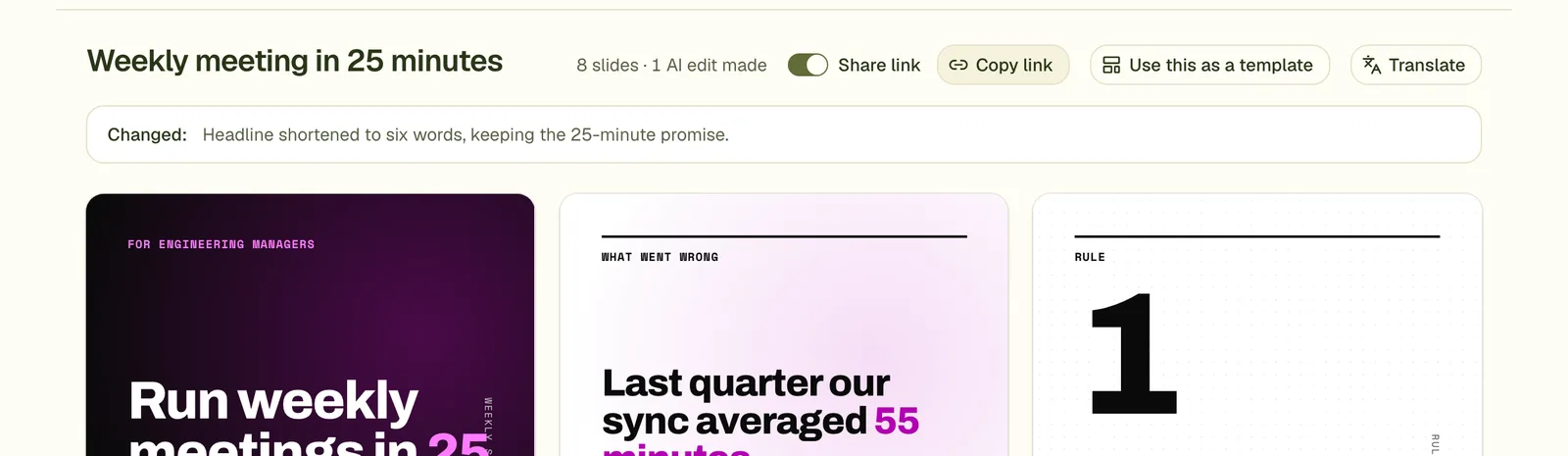
Find the Share link switch
It sits in the row under the title, beside the slide count. It is off by default.

Switch it on and copy the link
A Copy link button appears. Each slide also gets its own copy-link button, so you can point to one slide.
Send it
Anyone with the link sees the slides, not the editor.
What the viewer sees
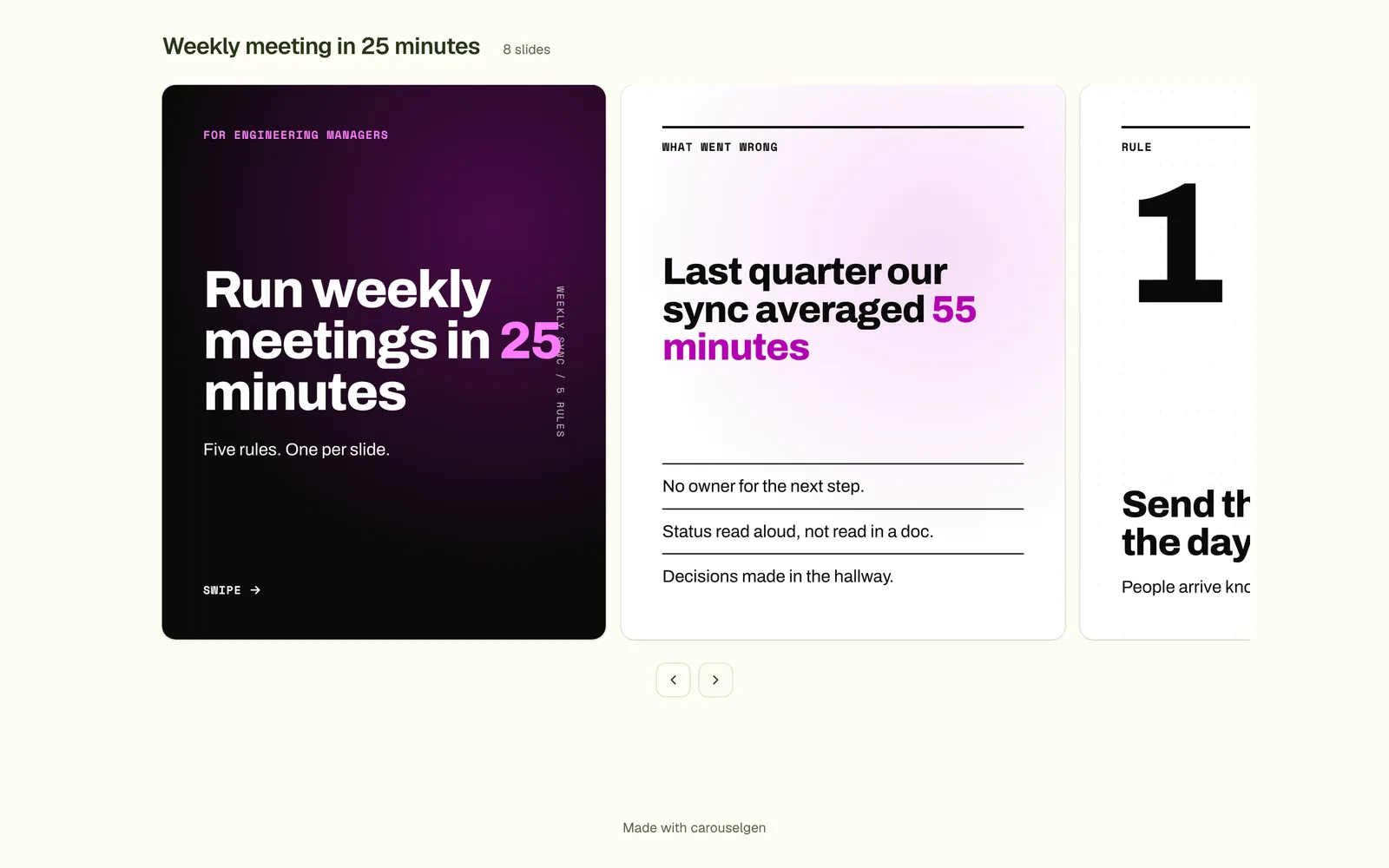
On a computer: the slides in a swipeable row. 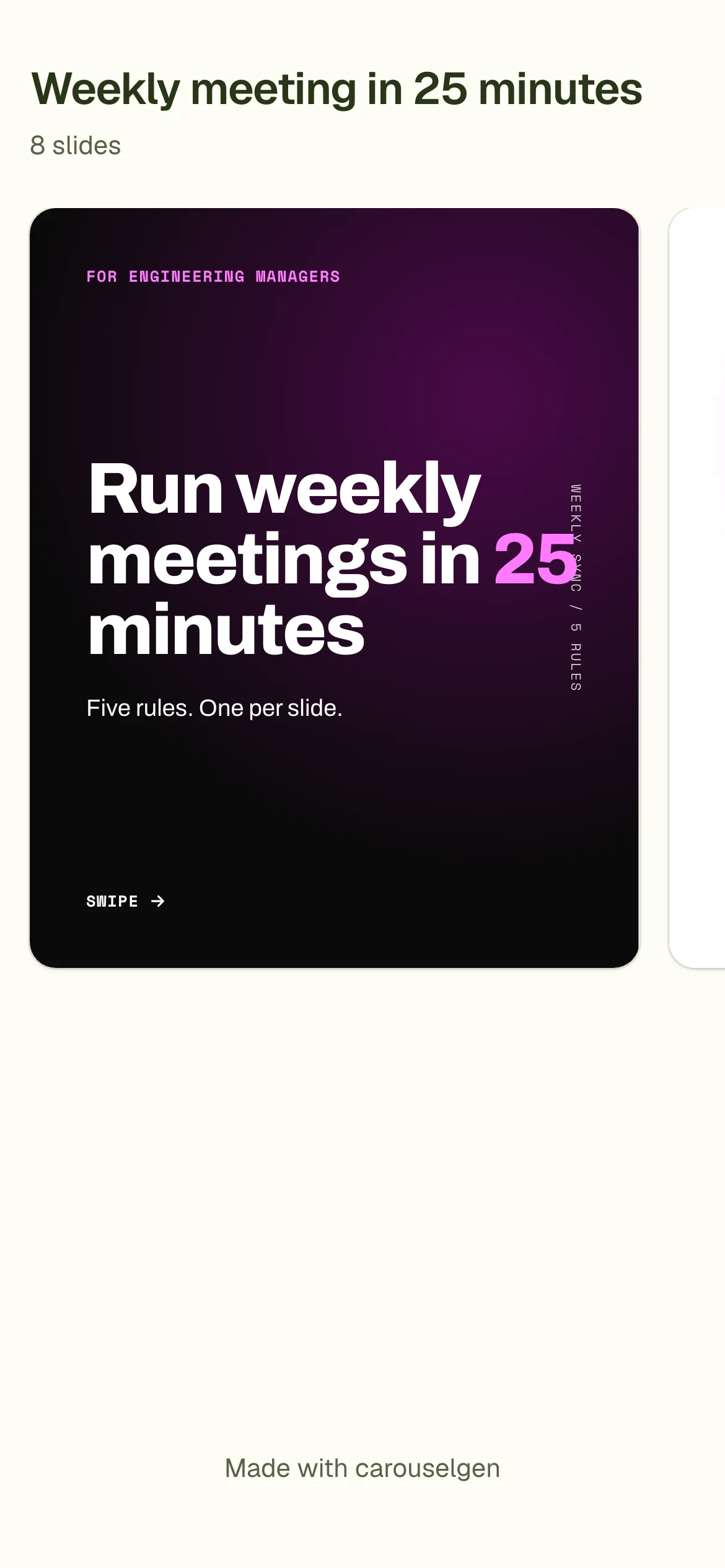
On a phone: one slide at a time.
- Only the slides, with the carousel's title and a "Made with carouselgen" line. Nothing else from your account.
- A link can open on a given slide: add ?slide=3 to the address.
- Viewers can use the carousel's look as a template for their own, through a "Use this as a template" button. Only the look leaves the carousel: the colours, fonts and slide styles, never the words.
Who can turn it on
The share link comes with a paid plan, and only for a carousel in your own account. Turning it off always works. If your plan lapses, links you already posted keep working. See the plans. On the free plan, send the exported PDF instead.
Questions
Can viewers comment or edit?
No. The link is read only. Comments are for the owner, in the editor.
Is the link secret?
It cannot be guessed, but anyone who has it can open it, and it can be forwarded. Turn the switch off to close it.
Does the share page show the carouselgen mark?
It shows a small "Made with carouselgen" line. The slides are not marked on a paid plan unless you turn the mark on.
Try it on your own carousel
Make a carousel from a short brief, then use this feature on it. It takes about a minute to get the first draft.
Try for free nowNo sign-up needed to try. The free plan exports with a small carouselgen.com mark.