
In short
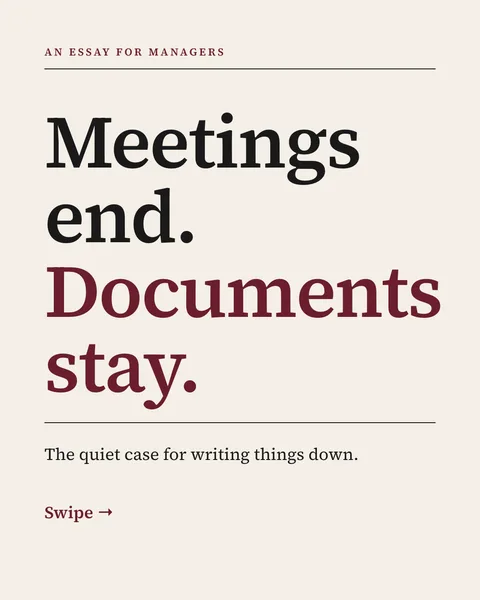
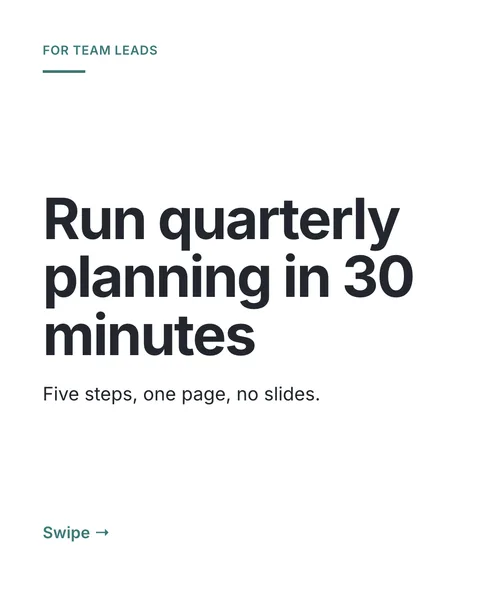
You do not post a carousel on LinkedIn with a carousel tool. You upload a PDF as a document, and LinkedIn shows the pages as slides that people swipe through. Once you have the PDF, posting takes about a minute.
Before you start
- Have the carousel as a PDF, every page the same size. 1080 x 1350 pixels works well.
- Keep the file under LinkedIn's limit of 100 MB and 300 pages, which its help page states.
- Write the title and the first lines of the caption in advance. They are the only text people see before they swipe.
The steps on desktop
Start a post
On your LinkedIn home page, click Start a post.
Add a document
In the post window, click the plus icon, then choose Add a document. If you cannot find it, the options sit behind that icon or a More button, and LinkedIn moves them now and then.
Choose your PDF
Pick the file from your computer. LinkedIn also accepts PPT, PPTX, DOC and DOCX, but recommends PDF for the best quality.
Write a document title
This shows above the slides in the feed. Write it like a headline for the whole carousel, not like a file name.
Write the caption
Two or three lines that make someone want to swipe. Do not repeat the cover slide.
Post
Click Post. The document appears as a carousel with the page count under it.
What goes wrong
- The slides look cut off. The pages were different sizes, or the text sits too close to the edge. Use 72 pixels of margin or more.
- Fonts changed. The file was a PPTX that LinkedIn converted. Export a PDF yourself instead.
- Animations do not play. LinkedIn shows them as still images.
- The upload fails. Check the size against the 100 MB and 300 page limits.
Making the PDF in a minute
If you do not have the PDF yet, carouselgen writes and designs it from one prompt and exports it ready to upload. The full process, with the writing steps, is in how to make a LinkedIn carousel. Sizes are on the carousel size page.
Questions
Can I post a carousel on LinkedIn from my phone?
It depends on the app version, which LinkedIn changes. If you cannot find Add a document on your phone, upload from a computer.
Why does LinkedIn show my carousel as a document?
A carousel on LinkedIn is a document post. The platform has no separate carousel format for organic posts.
Can I edit a carousel after posting?
Not the document. To change a slide, upload a corrected PDF as a new post. You can edit the caption.
Make this carousel now
Describe it once. The designer lays out every slide, and you fix what you dislike by commenting.
Try for free nowNo sign-up needed to try. The free plan exports with a small carouselgen.com mark.